
Tax forms, medical records, payslips, ID copies: some PDFs should only be opened by the right person. Adding a password is a simple way to protect them before you email or share them. Here’s how to password protect a PDF for free.
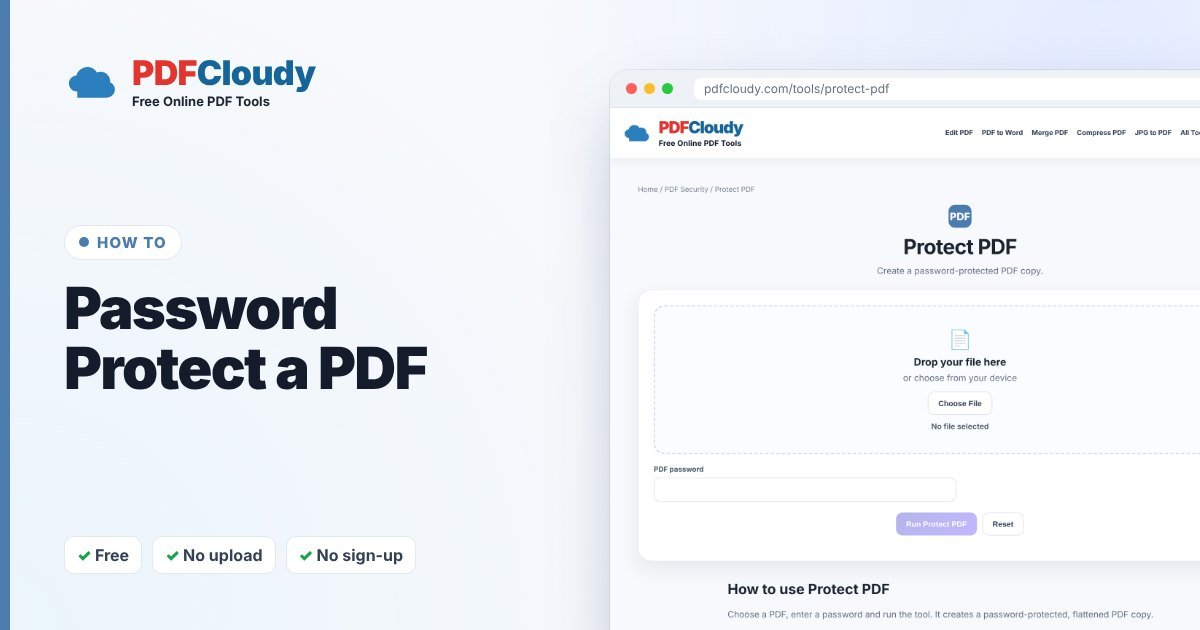
How to password protect a PDF
- Open the free Protect PDF tool.
- Click Choose File and select your PDF.
- Type a strong password in PDF password.
- Click Run Protect PDF. A protected copy downloads, and anyone opening it needs the password.
Your file is processed in your browser and not uploaded, so the unprotected document never leaves your device. No account or sign-up is needed.
Good to know before you protect
To protect the file, PDFCloudy creates a flattened copy: each page is saved as an image. That means in the protected copy:
- text can no longer be selected or copied,
- fillable form fields stop working,
- the appearance may change slightly.
So fill in and sign your document first, then protect it as the last step. Keep your unprotected original in a safe place.
How to choose and share a password
- Use at least 12 characters, mixing words, numbers and symbols.
- Don’t use birthdays or names.
- Send the password separately from the PDF: for example, email the file and text the password.
Other ways to protect a PDF
- Redact PDF – cover private details before sharing, then flatten the file with PDF to PDF/A so they can’t be copied.
- Add Watermark – mark a copy as “CONFIDENTIAL” or “COPY”.
- Unlock PDF – remove a password when you know it and no longer need it.
When you might need this
It’s worth adding a password to PDFs such as:
- Tax returns and financial statements.
- Payslips and HR documents.
- Medical records and insurance claims.
- Copies of IDs and passports you send for applications.
- Client files you send by email.
Common problems and quick fixes
- I forgot the password. A forgotten password can’t be recovered. That’s why you should keep your unprotected original safely stored.
- I can’t fill in the form any more. The protected copy is flattened. Fill in the original form first, then protect it.
- The recipient can’t open it. Check they’re typing the password exactly, including capital letters, and that they’re using an up-to-date PDF reader.
Curious how it works before you password protect a PDF? Read more about password strength on Wikipedia.
Quick recap
To password protect a PDF, fill in and sign the document first, then open the free Protect PDF tool, enter a strong password and download the protected copy. Keep your unprotected original somewhere safe, because a forgotten password can’t be recovered, and always send the password separately from the file. Your document is processed in your browser, so the unprotected version never leaves your device.
More free PDF guides
Every guide on this blog uses a free PDFCloudy tool that runs in your browser. If this one helped, these are worth a look next:
- How to sign a PDF without printing it – add your signature in a minute.
- How to add a watermark to a PDF – mark files as DRAFT, SAMPLE or CONFIDENTIAL.
- How to delete pages from a PDF – remove blank, extra or private pages.
- How to change text in a PDF – fix typos, dates and names without new software.
Frequently asked questions
Can I remove the password later?
Yes, with the password: use Unlock PDF. Without the password, it can’t be removed, so keep it somewhere safe.
Is password protection enough for very sensitive files?
It’s a strong first step for everyday sharing. For highly sensitive data, follow your company’s or advisor’s security rules.
Is my PDF uploaded?
No. Protect PDF runs in your browser, so your document stays on your device.