
Printing a document just to sign it and scan it back is slow and wastes paper. For everyday paperwork such as rental forms, school permission slips or simple agreements, you can sign a PDF on your computer or phone in a minute. Here’s how.
Step 1: Make an image of your signature
Sign your name in dark ink on a plain white sheet of paper. Take a clear photo of it, then crop it close around the signature. Save it as a JPG or PNG. You can reuse this image every time you sign.
Step 2: Add the signature to your PDF
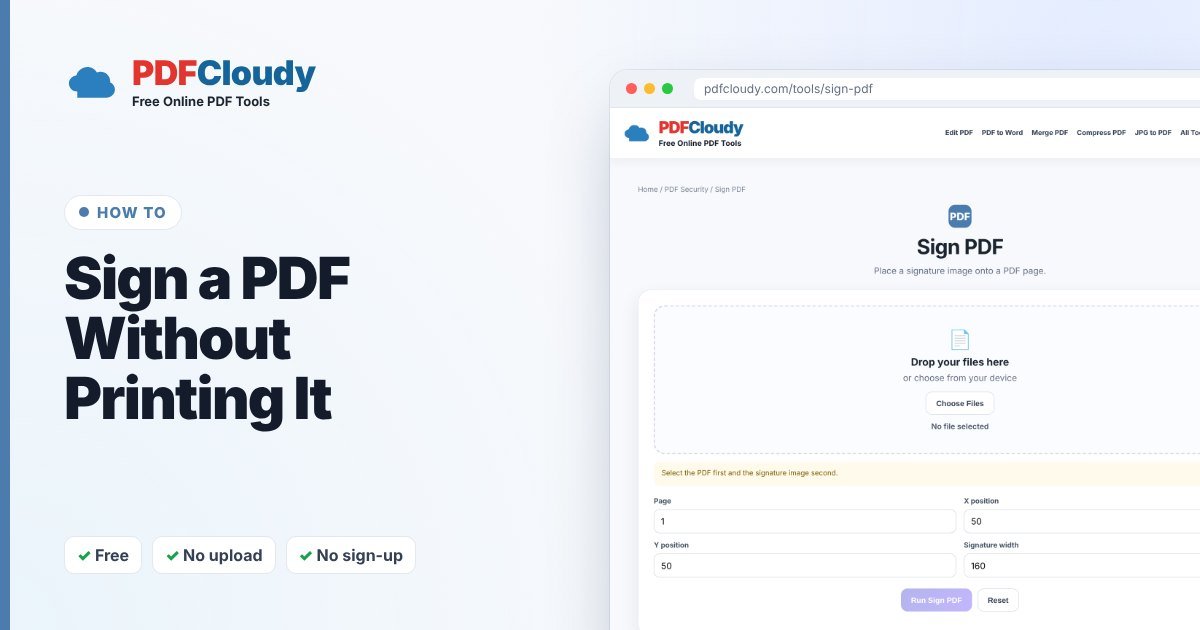
- Open the free Sign PDF tool.
- Click Choose Files. Select your PDF first and your signature image second.
- Choose the page, the X and Y position and the signature width.
- Click Run Sign PDF and open the download to check where the signature landed. Adjust the position and run it again if needed.
Your file is processed in your browser, on your own device, and is not uploaded to our server. No account or sign-up is needed.
Prefer to draw or type your signature?
The free PDFCloudy PDF Editor has a Sign tool where you can type, draw or upload a signature, then drag it exactly where you want it on the page. It’s handy when you also need to fill in dates or names. See how to change text in a PDF for more editor tips.
Is this a legal signature?
This method places a picture of your signature on the page. That’s accepted for many everyday forms, but it is not a certified digital signature with identity verification. For contracts, banking or government documents that require a verified e-signature, use a dedicated signing service the other party accepts. If you’re unsure, ask the person who sent you the document.
Tips for a professional look
- Use a PNG with a transparent or white background so it blends into the page.
- Keep the signature about as wide as a real handwritten one, not too big.
- After signing, consider protecting the PDF with a password before emailing it.
When you might need this
Signing PDFs online saves a trip to the printer for things like:
- Rental and lease forms.
- School permission slips and activity forms.
- Freelance quotes and simple service agreements.
- Delivery or work confirmations and timesheets.
Common problems and quick fixes
- My signature has a grey or white box around it. Photograph it on bright white paper in good light, crop it tightly, or use a PNG with a transparent background.
- The signature is in the wrong place. Change the X and Y position (or the page number) and run the tool again on your original PDF.
- The signature is too big or too small. Adjust the signature width. A real signature is usually about 4–6 cm wide on a printed page.
Curious how it works before you sign a PDF? Read more about electronic signatures on Wikipedia.
Quick recap
To sign a PDF without printing it, make a clear image of your signature once, then add it with the free Sign PDF tool, or type or draw it in the PDFCloudy PDF Editor. Check where the signature landed before you send the file, and protect it with a password if it contains personal details. For contracts that need a verified e-signature, use a signing service the other party accepts. Everything else happens in your browser, with no printer or scanner needed.
More free PDF guides
Every guide on this blog uses a free PDFCloudy tool that runs in your browser. If this one helped, these are worth a look next:
- How to change text in a PDF – fix typos, dates and names without new software.
- How to password protect a PDF – lock private files before you email them.
- How to add a watermark to a PDF – mark files as DRAFT, SAMPLE or CONFIDENTIAL.
- How to convert Word to PDF – send documents that look the same everywhere.
Frequently asked questions
Can I sign a PDF on my phone?
Yes. Both the Sign PDF tool and the PDF Editor work in mobile browsers.
Can I sign on more than one page?
Run Sign PDF once for each page, using the signed result each time, or use the PDF Editor to place your signature on several pages.
Is my signature uploaded?
No. Your PDF and signature image are processed in your browser and stay on your device.