
Many forms and portals only accept PDFs, but your documents are photos on your phone. The fix is simple: convert JPG to PDF. Here’s how to convert JPG to PDF for free, with several photos in one file.
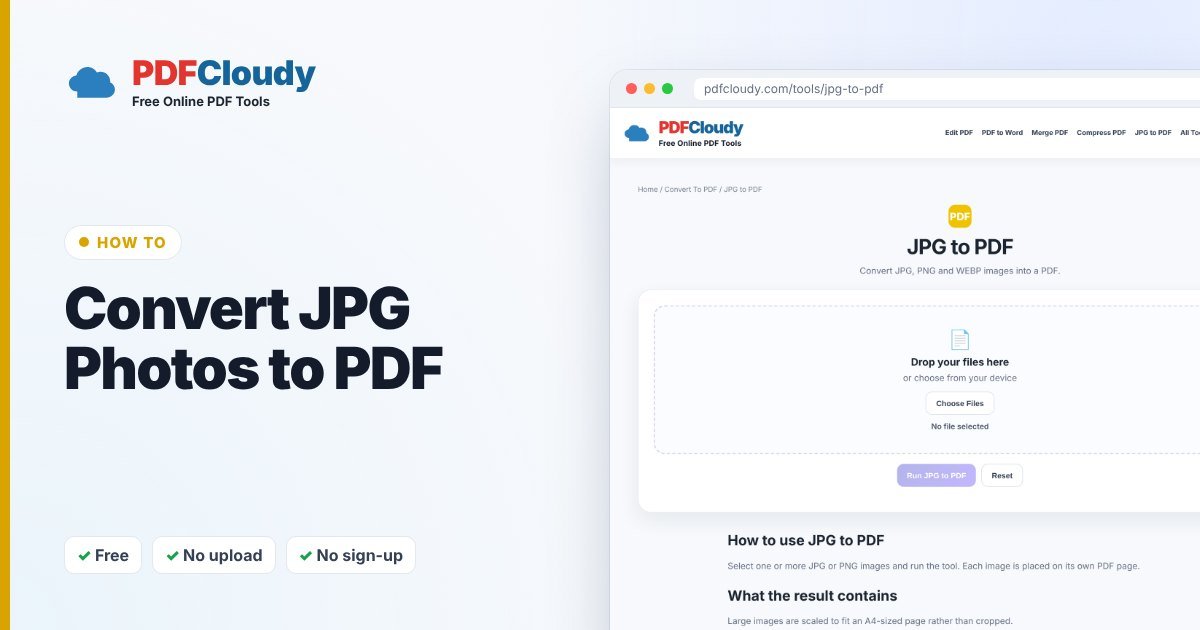
How to convert JPG to PDF
- Open the free JPG to PDF tool.
- Click Choose Files and select one or more JPG or PNG images.
- Click Run JPG to PDF.
- Your PDF downloads with each image on its own page.
Your file is processed in your browser, on your own device, and is not uploaded to our server. No account or sign-up is needed.
Tips for a clean result
- Choose the order first. Pages follow the order of the images you select, so rename them 1, 2, 3… if needed.
- Large photos are scaled to fit the page (A4 size), never cropped, so nothing gets cut off.
- Take photos in good light, flat and straight from above, for documents that are easy to read.
Photographing a paper document?
If your pictures are of paper documents such as receipts, letters or ID forms, try Scan to PDF, which is made for turning document photos into a tidy PDF.
Common next steps
- PDF too large for an upload form? Use Compress PDF.
- Need to add more pages later? Convert the new photos, then use Merge PDF.
- Need the text to be searchable? Run OCR PDF on the result.
When you might need this
Turning photos into a PDF comes up all the time:
- Uploading documents to job, school, visa or insurance portals that only accept PDF.
- Receipts and invoices for expense claims.
- Homework and handwritten notes photographed with your phone.
- Photo collections – send a set of pictures as one tidy file instead of many attachments.
Common problems and quick fixes
- My images are in the wrong order. Rename them 1, 2, 3… before selecting them, or reorder the pages afterwards with Organize PDF.
- A photo is sideways. Rotate the photo in your phone’s gallery before converting, or rotate the PDF with Rotate PDF.
- My iPhone photo is HEIC, not JPG. On iPhone, go to Settings → Camera → Formats and choose Most Compatible for future photos, or share the photo as a JPG.
- The PDF is too big to upload. Use Compress PDF to reduce the size.
Curious how it works before you convert JPG to PDF? Read more about the JPG (JPEG) image format on Wikipedia.
Quick recap
To convert JPG to PDF, open the free JPG to PDF tool, select your photos in the order you want, and click Run JPG to PDF. Each image becomes its own page, sized to fit without cropping. Take document photos flat and in good light, use Scan to PDF for paper documents, and compress the result if an upload form has a size limit. Your photos are processed in your browser and are never uploaded to a server.
More free PDF guides
Every guide on this blog uses a free PDFCloudy tool that runs in your browser. If this one helped, these are worth a look next:
- How to convert PDF to JPG – save pages as images for social media or slides.
- How to merge PDF files into one – combine several documents into a single file.
- How to convert Word to PDF – send documents that look the same everywhere.
- How to password protect a PDF – lock private files before you email them.
Frequently asked questions
Can I convert several JPGs into one PDF?
Yes. Select all the images at once and they become one PDF, one image per page.
Does it work with PNG images?
Yes, JPG and PNG images both work.
Can I do this on my iPhone?
Yes. Open the tool in Safari, tap Choose Files and pick photos from your library.
Are my photos uploaded?
No. JPG to PDF runs in your browser, so your photos stay on your device.