
A blank page from the scanner, an old cover sheet, a page with details you don’t want to share: removing pages is one of the most common PDF fixes. Here’s how to delete pages from a PDF in under a minute, for free.
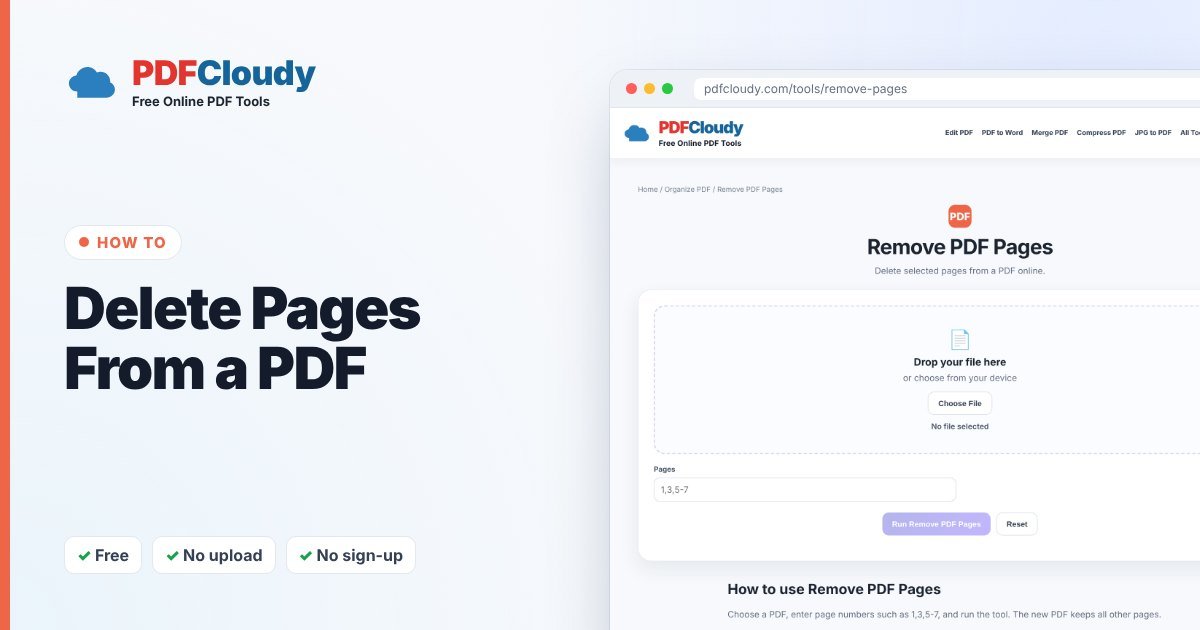
How to delete pages from a PDF
- Open the free Remove PDF Pages tool.
- Click Choose File and select your PDF.
- In Pages, type the page numbers you want to delete, for example 1,3,5-7.
- Click Run Remove PDF Pages. The new PDF keeps every other page.
Your file is processed in your browser, on your own device, and is not uploaded to our server. No account or sign-up is needed.
How to type page numbers
- One page:
4 - Several pages:
2,5,9 - A range:
10-15deletes pages 10 to 15 - Mixed:
1,3,5-7
Page numbers start at 1, which is the first page of the file. This may differ from the numbers printed on the pages. If you’re unsure, open the PDF first and count.
Want to keep only a few pages instead?
If you’re deleting most of the document, it’s quicker to do the opposite: use Extract PDF Pages and type only the pages you want to keep.
Before you replace your original
- Check the page count of the new file.
- Scroll through to make sure the right pages are gone.
- Keep the original until you’re sure. PDFCloudy never changes your original file.
Need to hide part of a page rather than delete the whole page? Cover private details such as account numbers with Redact PDF, then run the result through PDF to PDF/A so the text underneath can’t be copied.
When you might need this
Common reasons to delete pages from a PDF:
- Blank pages from a double-sided scan.
- Cover sheets and fax pages nobody needs.
- Private pages you don’t want to share, such as a page with bank details.
- Old versions of a page that was later replaced.
- Making a file smaller by dropping image-heavy pages you don’t need.
Common problems and quick fixes
- The wrong page was deleted. The page number you typed counts from the first page of the file, not the number printed on the page. Start again from your original and count from the top.
- Nothing happens when I type a range. Use a hyphen with no spaces, like 5-7, and commas between groups, like 1,3,5-7.
- I need to delete part of a page, not the whole page. Cover the details with Redact PDF (then flatten the file with PDF to PDF/A), or Crop PDF to trim the edges.
Curious how it works before you delete pages from a PDF? Read more about the PDF format on Wikipedia.
Quick recap
To delete pages from a PDF, open the free Remove PDF Pages tool, type the page numbers you don’t need, such as 2 or 5-7, and download the new file. Count pages from the first page of the file, check the page count of the result, and keep your original until you are sure. If you are removing most of the document, Extract PDF Pages is quicker. Everything runs in your browser, so the pages you remove never leave your device.
More free PDF guides
Every guide on this blog uses a free PDFCloudy tool that runs in your browser. If this one helped, these are worth a look next:
- How to split a PDF into separate pages – turn one long file into single-page PDFs.
- How to merge PDF files into one – combine several documents into a single file.
- How to password protect a PDF – lock private files before you email them.
- How to change text in a PDF – fix typos, dates and names without new software.
Frequently asked questions
Can I delete pages from a PDF on my phone?
Yes. The tool works in mobile browsers on iPhone and Android.
Can I undo deleting a page?
Your original file is never changed, so just start again from the original.
Can I delete every page?
No. At least one page must remain for the result to be a useful PDF.
Is it safe for private documents?
Yes. Remove PDF Pages runs in your browser, so your document is not uploaded.