
Job applications, school forms, invoices, scanned receipts: sooner or later you need to send several PDFs as one file. In this guide you’ll learn how to merge PDF files into a single document for free, without installing anything and without uploading your files anywhere.
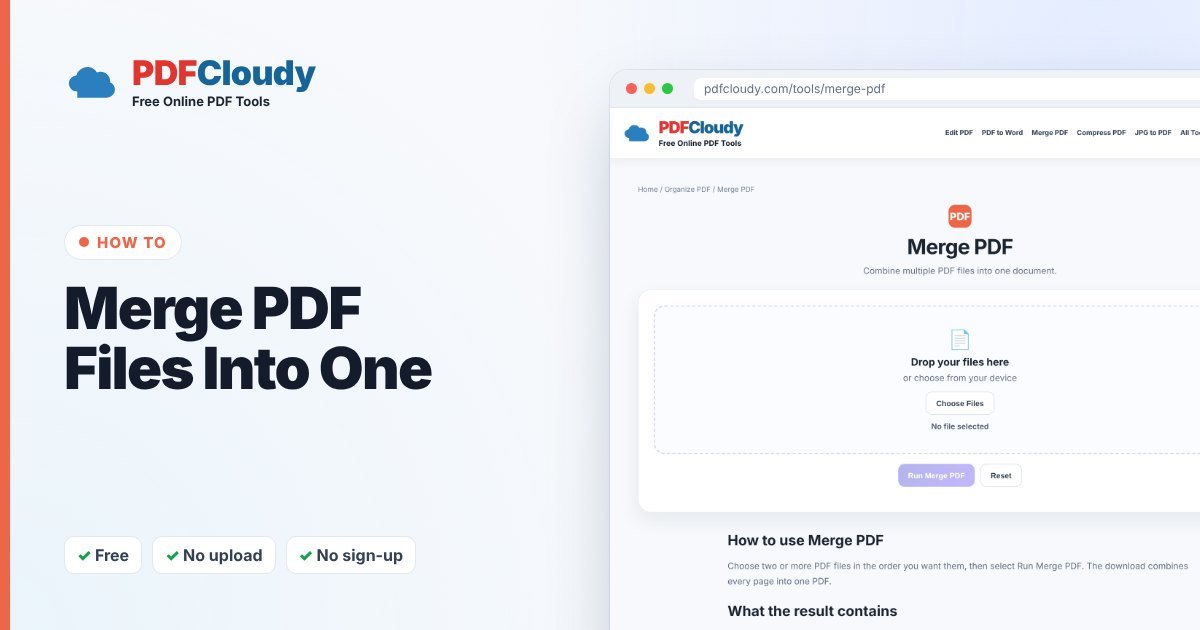
How to merge PDF files in 4 steps
- Open the free Merge PDF tool.
- Click Choose Files and select two or more PDFs. Select them in the order you want them to appear.
- Click Run Merge PDF.
- Your combined PDF downloads automatically. Open it and check the pages before you send it.
That’s it. Your file is processed in your browser, on your own device, and is not uploaded to our server. No account or sign-up is needed.
Tip: get the order right the first time
The pages in the new PDF follow the order in which you select the files. The easiest trick is to rename your files before you start:
- 01-cover-letter.pdf
- 02-resume.pdf
- 03-references.pdf
Most file pickers sort by name, so the numbers keep everything in the right order.
What to do after merging
Pages in the wrong order?
Use Organize PDF to move pages into a custom order without merging again.
Merged file too big to email?
Run it through Compress PDF. Our guide how to make a PDF smaller explains which settings to choose.
Need to remove a page you added by mistake?
Use Remove PDF Pages and type the page number you want to delete.
Why merge PDFs in your browser?
- Private: the files never leave your computer or phone, which matters for IDs, bank statements and contracts.
- Free: no trial, no watermark on your file, no account.
- Works anywhere: Windows, Mac, Chromebook, iPhone or Android, in any modern browser.
When you might need this
Merging PDFs is useful whenever several files belong together:
- Job applications – cover letter, resume and references in one file.
- Rental and loan applications – pay stubs, ID and bank letters as one document.
- School work – combine chapters or scanned worksheets into one submission.
- Expense reports – put all your receipts behind the report form.
- Contracts – attach signed pages and appendices to the main agreement.
Common problems and quick fixes
- A file won’t open or merge. It may be password protected or damaged. Try Unlock PDF (you’ll need the password) or Repair PDF first.
- The pages are in the wrong order. Select the files again in the right order, or fix the result with Organize PDF.
- One of my files is a photo, not a PDF. Convert it with JPG to PDF first, then merge.
- The merged file is very large. That usually comes from scanned pages. Compress PDF can shrink it.
Curious how it works before you merge PDF files? Read more about the PDF format on Wikipedia.
Quick recap
To merge PDF files, open the free Merge PDF tool, select your files in the order you want, and click Run Merge PDF. Number your files first if the order matters, check the result before you send it, and use Organize PDF or Compress PDF afterwards if you need to reorder pages or make the file smaller. Because everything runs in your browser, it works the same on a laptop, a Chromebook or a phone, and your documents never leave your device. Bookmark the tool so it is ready the next time you need to send several files as one.
More free PDF guides
Every guide on this blog uses a free PDFCloudy tool that runs in your browser. If this one helped, these are worth a look next:
- How to split a PDF into separate pages – turn one long file into single-page PDFs.
- How to delete pages from a PDF – remove blank, extra or private pages.
- How to add page numbers to a PDF – number reports, theses and merged files.
- How to convert JPG to PDF – turn phone photos into one tidy PDF.
Frequently asked questions
Is there a limit on how many PDFs I can merge?
There’s no fixed limit, but very large files use more of your device’s memory. If your browser slows down, merge in smaller batches and then merge the results.
Can I merge PDFs on my phone?
Yes. Open the Merge PDF tool in your phone’s browser, tap Choose Files and pick the PDFs from your files app.
Will merging change the quality of my PDF?
No. Merging copies the pages into one document; it doesn’t re-compress them.
Are my files uploaded?
No. Merge PDF runs entirely in your browser, so your documents stay on your device.