
Want to post a flyer on Instagram, drop a page into a presentation, or share a page as an image in a chat app? When you convert PDF to JPG, each page becomes a picture you can use anywhere. Here’s how to convert PDF to JPG for free.
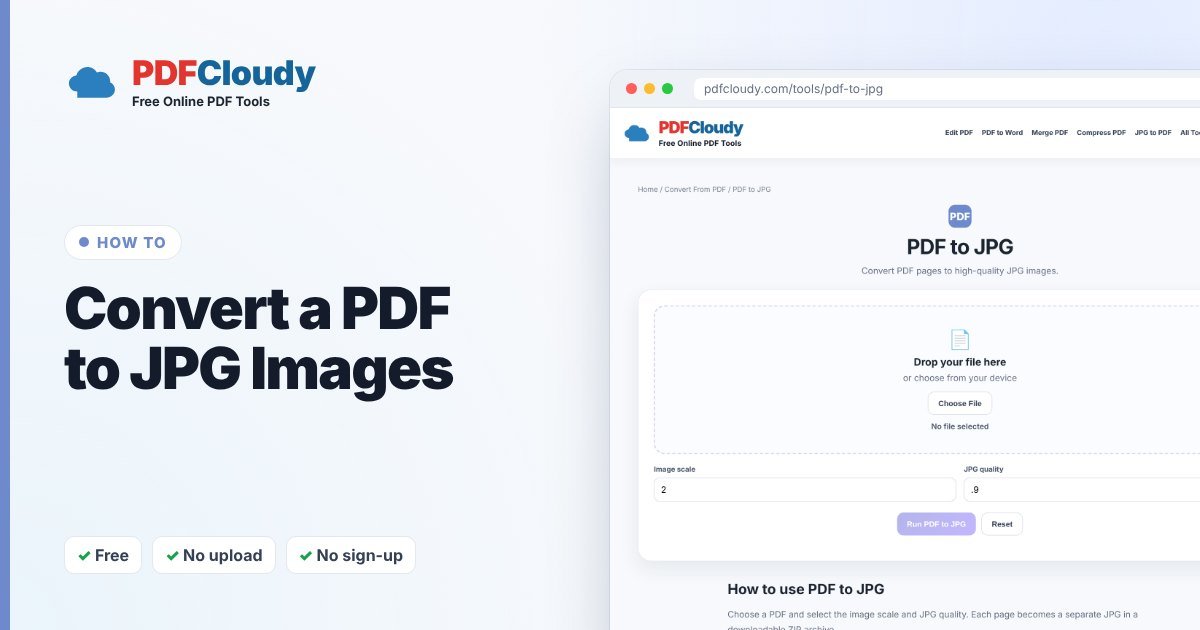
How to convert PDF to JPG
- Open the free PDF to JPG tool.
- Click Choose File and select your PDF.
- Choose the Image scale and JPG quality (see below).
- Click Run PDF to JPG. A ZIP file downloads with one JPG per page.
Your file is processed in your browser, on your own device, and is not uploaded to our server. No account or sign-up is needed.
Which settings should I choose?
- Image scale: a higher scale gives bigger, sharper images. Use a higher scale for pages with small text or fine details.
- JPG quality: higher quality looks better but makes larger files. For social media and chat apps, medium quality is usually enough.
Not sure? Try once, open one image and zoom in. If the text looks blurry, run it again with a higher scale.
Good to know
- JPG images are pictures, so the text can no longer be selected or copied, and links and form fields stop working.
- Keep the PDF if you might need to edit or search the text later.
- To turn images back into a PDF, use JPG to PDF.
When is a PDF better than a JPG?
For documents people need to print, sign or search, keep the PDF. JPGs are best for showing a page: social posts, thumbnails, websites and slides.
When you might need this
Converting PDF pages to images is handy when you need to:
- Post on social media – Instagram, Facebook and Pinterest don’t accept PDFs.
- Add a page to slides in PowerPoint, Keynote or Google Slides.
- Show a preview of an ebook, menu, flyer or certificate on a website.
- Share in chat apps so people can see the page without opening a file.
Common problems and quick fixes
- The text looks blurry. Run it again with a higher Image scale.
- The images are too large to send. Lower the JPG quality or the image scale and convert again.
- I can’t copy text from the images. That’s normal: a JPG is a picture. Keep the original PDF for copying text.
Curious how it works before you convert PDF to JPG? Read more about how JPG compression works on Wikipedia.
Quick recap
To convert PDF to JPG, open the free PDF to JPG tool, pick an image scale and JPG quality, and click Run PDF to JPG. You get a ZIP with one image per page. Choose a higher scale for small text and a lower quality for smaller files, and keep the original PDF if you might need to copy or search the text later. Everything happens in your browser, so your PDF stays on your device.
More free PDF guides
Every guide on this blog uses a free PDFCloudy tool that runs in your browser. If this one helped, these are worth a look next:
- How to convert JPG to PDF – turn phone photos into one tidy PDF.
- How to split a PDF into separate pages – turn one long file into single-page PDFs.
- How to add a watermark to a PDF – mark files as DRAFT, SAMPLE or CONFIDENTIAL.
- How to merge PDF files into one – combine several documents into a single file.
Frequently asked questions
Can I convert just one page?
The tool converts every page. To get a single page, first use Extract PDF Pages to make a one-page PDF, then convert that.
Will the images be high quality?
Yes, if you choose a higher image scale and quality. The trade-off is a larger file size.
How do I open the ZIP file?
Double-click it on a computer, or tap it in the Files app on your phone, to unzip the images.
Is my PDF uploaded?
No. PDF to JPG runs in your browser and your file stays on your device.