
Got a long PDF but only need to send one page? Or a scanned stack of documents that should really be separate files? Splitting a PDF solves both. Here’s how to split a PDF for free, right in your browser.
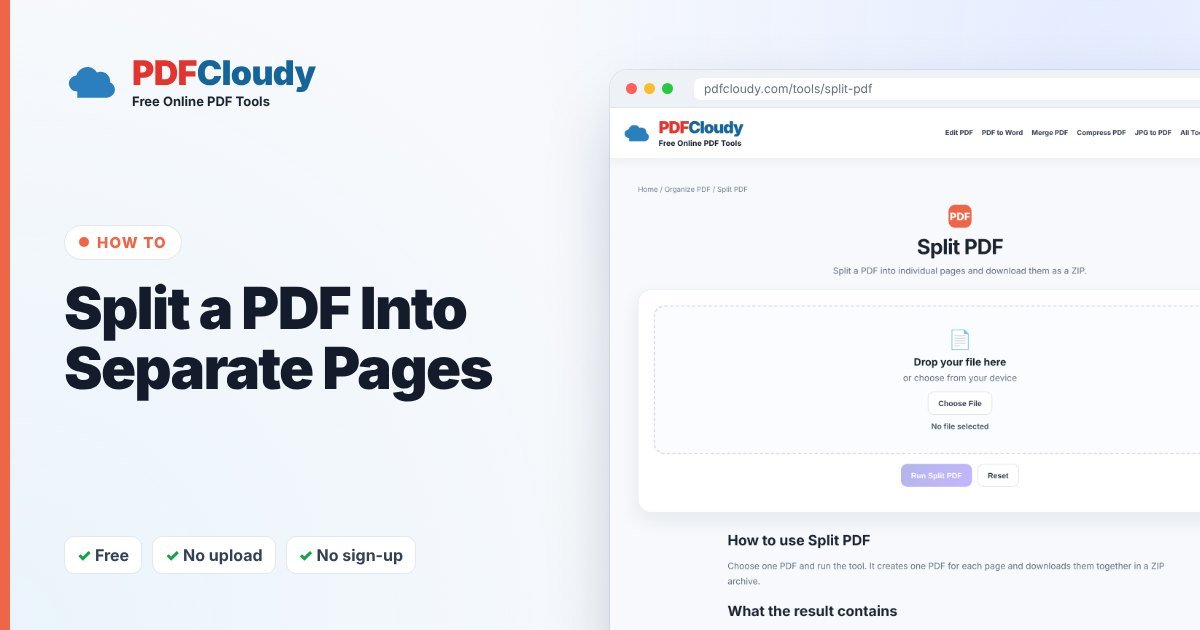
How to split a PDF into single pages
- Open the free Split PDF tool.
- Click Choose File and select your PDF.
- Click Run Split PDF.
- A ZIP file downloads with one PDF for every page. Open the ZIP to get your files.
Your file is processed in your browser, on your own device, and is not uploaded to our server. No account or sign-up is needed.
Only need some pages? Use Extract instead
Split PDF always creates one file per page. If you just need a few pages in one new PDF, use Extract PDF Pages and type the pages you want, for example 2,4-6. The result contains only those pages, in a single file.
Split, extract or remove: which one do I need?
- Split PDF – every page becomes its own PDF (downloaded as a ZIP).
- Extract PDF Pages – keep only the pages you choose, in one new PDF.
- Remove PDF Pages – delete the pages you don’t want and keep the rest.
Opening the ZIP file
- Windows: right-click the ZIP and choose Extract All.
- Mac: double-click the ZIP and a folder appears next to it.
- iPhone/iPad: tap the ZIP in the Files app to unzip it.
- Android: open it in the Files app and tap Extract.
Check the page numbers in the file names before you forward any pages.
When you might need this
People split PDFs for all kinds of everyday reasons:
- Batch scans – you scanned ten letters in one go and need ten separate files.
- Sharing one page – send just the page someone needs, not the whole document.
- Upload limits – some portals only accept small files or one page per upload.
- Organizing records – save each statement, receipt or certificate in its own file.
Common problems and quick fixes
- I got a ZIP and don’t know what to do with it. A ZIP is a folder packed into one file. Double-click it (computer) or tap it in your Files app (phone) to see the PDFs.
- I only wanted pages 3 to 5. Use Extract PDF Pages and type 3-5 to get them in one file.
- My PDF is password protected. Open it first with Unlock PDF using the password, then split the unlocked copy.
Curious how it works before you split a PDF? Read more about ZIP file on Wikipedia.
Quick recap
To split a PDF, open the free Split PDF tool, choose your file and click Run Split PDF. You get a ZIP with one PDF for every page. If you only need a few pages, use Extract PDF Pages instead, and if you want to drop a page, use Remove PDF Pages. Check the page numbers in the file names before you share anything. It all happens in your browser, so even long or private documents stay on your own device the whole time.
More free PDF guides
Every guide on this blog uses a free PDFCloudy tool that runs in your browser. If this one helped, these are worth a look next:
- How to merge PDF files into one – combine several documents into a single file.
- How to delete pages from a PDF – remove blank, extra or private pages.
- How to convert PDF to JPG – save pages as images for social media or slides.
- How to add page numbers to a PDF – number reports, theses and merged files.
Frequently asked questions
Can I split a PDF by page range?
Split PDF splits every page. For a range, such as pages 3–7, use Extract PDF Pages and type 3-7.
Does splitting reduce quality?
No. Each page is copied as it is into its own PDF.
Can I put the pages back together later?
Yes. Use Merge PDF to combine any of the pages again.
Are my files uploaded?
No. Split PDF runs in your browser and your PDF stays on your device.